Expertise
Our approachCasesCareersContactSEA
SEO
CRO
Social
Data
AI Marketing
WHAT WE SPECIALISE IN
SEO
Social
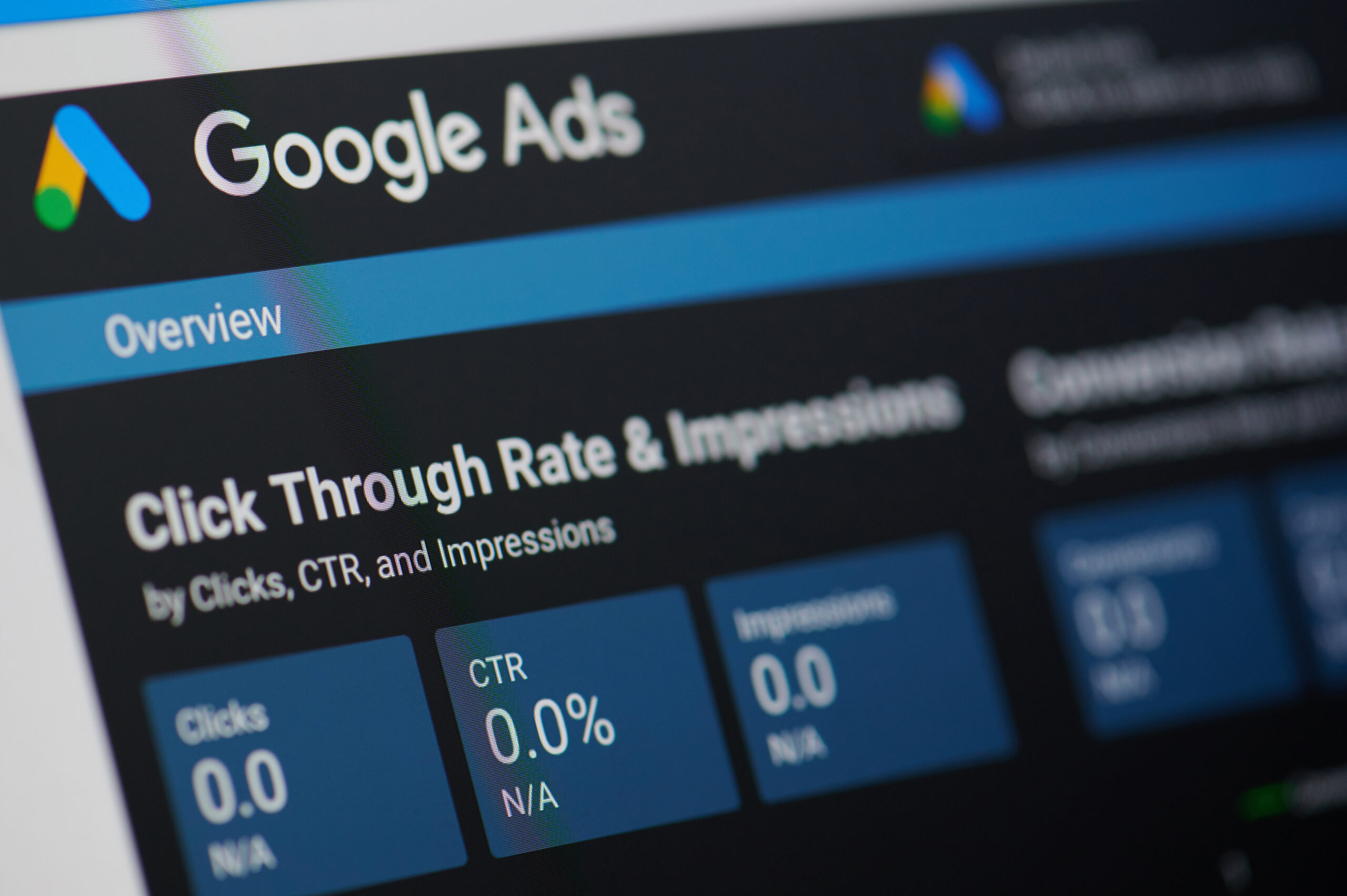

You want your business to be positioned as well as possible in Google's search engine. With good positioning and the right settings, you maintain the quality of the account and traffic. The settings when creating ads play a role in this, but so does the content of the ads. With a successful Google Ads campaign, you make sure your business name appears in the search results in a high-quality way. If you don't set it up according to Google's requirements, you'll be positioned lower and pay more per click. Want to set up a Google Ads campaign yourself? This blog explains it step by step.
First, create a Google Ads account. To do this, go to ads.google.com and click ‘Start now’. You'll be taken to a Google login page where you can log in with a Google account or create a new one.
Once you're logged in, you'll come to a screen asking for your main advertising goal. At the bottom of the screen, you'll see a (very, very small) link that says “Switch to Expert Mode”. Click on it and we'll get started setting up your first campaign.
Set up your ads using Google Support.
► Go to https://support.google.com/
► Go to: AdWords > My Client Centre > Click the Campaigns tab > Then + Campaign > Select Search Network only and select all features to start creating a campaign.
Give the Google AdWords campaign a relevant name. This can relate to your ads or a particular audience. Our advice is to use Exact keywords and Broad Match Modifier keywords, because these let you reach your audience more specifically.
Always create an exact and a BMM variant of the campaign, excluding the exact keywords in the broad match modifier campaign. The reason for this is to steer the traffic in the right direction and to avoid bidding against yourself. Example campaign name: 01.00 Dames-Collectie-BMM or e.g. 01.00-Dames-Collectie-Exact) This will ultimately help when analysing and optimising campaigns through reports.
► Scroll down to see the settings options
► Scroll further until you reach languages
► Create ad groups > Give the ad groups that fall under and relate to the new Google Ads campaigns a name > for example, the campaign 01.00-Dames-Collect > Ad group: Broeken Dameskleding or Jassen dameskleding
► This is where the Final URL, Headline, Path 1 & 2, Headline 1 & Headline 2 and the description are filled in. Examples are shown next to these items.
Our advice here is to use sitelinks, callout extensions and structured snippet extensions at campaign level. All the different extensions are described in detail via this link.